
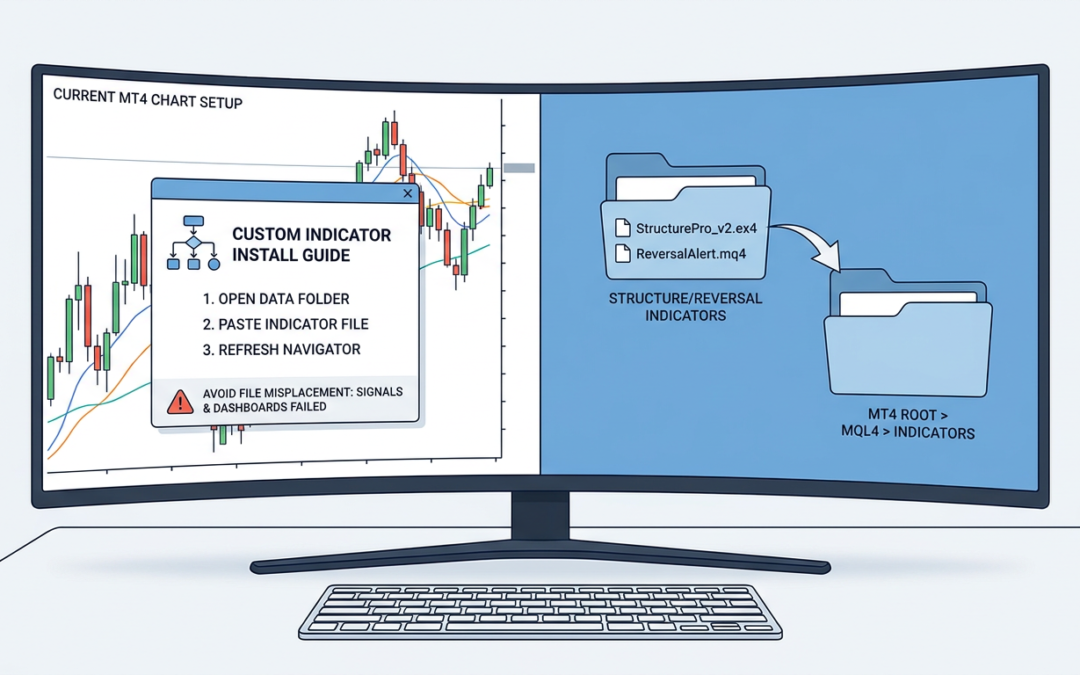
Every week we get a message that starts the same way: ‘the indicator isn’t showing signals’ or ‘the dashboard is blank.’ Nine times out of ten it has nothing to do with the indicator itself. It’s the install. A wrong folder, a skipped restart, or a setting left unchecked in MT4 is usually the culprit, and it’s an easy fix once you know where to look.
This guide walks through the install process the right way, built specifically around structure and reversal tools like ours that rely on alerts, multi-timeframe data, and dashboard overlays. Get this part right once and you’ll never have to think about it again.
Find the Correct Data Folder First
MT4 doesn’t store your indicator files where you’d expect. It’s not in ‘Program Files’ with the rest of the platform, it’s in a hidden data folder tied to that specific installation.
Open MT4, go to File in the top menu, and click Open Data Folder. This opens the exact folder your terminal reads from. If you have multiple MT4 installs (one per broker, for example), each one has its own separate data folder, and this is where most people go wrong: they drop files into the wrong broker’s folder and wonder why nothing shows up.
Inside that data folder, go to MQL4. This is where everything lives.
Put Each File Type in the Right Subfolder
Inside MQL4 you’ll see several subfolders, and each file type has one home. Mixing these up is the single most common install mistake we see.
- Custom indicators (.ex4 or .mq4 files) go in MQL4/Indicators
- Expert Advisors go in MQL4/Experts
- Dashboards, even though they visually sit on the chart like an indicator, are still indicator files and belong in MQL4/Indicators
- Any supporting library or include files (.mqh, .dll) go in MQL4/Libraries or MQL4/Include depending on what the instructions specify
If your download came as a .zip, extract it fully first. A surprising number of ‘the indicator won’t install’ tickets turn out to be someone dragging a zipped file straight into the Indicators folder without unpacking it. MT4 will not read a compressed file, no matter how many times you refresh.
Restart the Terminal, Don’t Just Refresh
Once your files are in the correct folders, close MT4 completely and reopen it. Right-clicking Navigator and hitting refresh sometimes works for a single indicator, but multi-file packages (indicator plus dashboard plus include file) often need a full restart to register everything correctly.
After restarting, open the Navigator panel (Ctrl+N if it’s hidden) and expand Indicators. Your new tool should be listed there. If it isn’t, it didn’t land in the right folder, or MT4 needs another restart.
Attach It Properly and Check the Settings Tab
Drag the indicator from Navigator onto the chart, or double-click it. A window will pop up with several tabs, and this is where signals quietly go missing.
- On the Inputs tab, confirm any structure lookback periods, sensitivity settings, or timeframe filters match what you actually want. Defaults are a starting point, not gospel.
- On the Colors tab, check that arrows, zones, or lines aren’t set to a color identical to your chart background. This sounds trivial but it’s a real reason people think ‘nothing is plotting’ when it’s plotting fine, just invisible.
- On the Notifications tab (or Common tab depending on version), tick Allow Alerts, and if you want push or email alerts, make sure those boxes are checked too and that your terminal’s Options are configured for them under Tools > Options > Notifications.
For anything reading multiple timeframes or pulling in external data, also tick Allow DLL imports under the Common tab if the tool requires it. Skip this and the indicator can fail silently, no error, just no output.
Dashboard-Specific Checks
Dashboards behave a little differently than a standard line-on-chart indicator, because they’re usually scanning multiple pairs or timeframes at once from a single chart.
- Only attach the dashboard to one chart. Attaching it to every chart in your workspace multiplies CPU load and can cause conflicting instances.
- Make sure the symbols the dashboard needs to scan are actually visible in your Market Watch window. If a pair isn’t showing there, MT4 may not be streaming data for it, and the dashboard row for that pair will sit blank or frozen.
- Give it a minute after attaching. Multi-symbol dashboards often need to load historical data for every pair on the list before the table populates fully.
Common Mistakes That Break the Setup Later
Even a perfect install can get undone weeks later by small habits. Watch for these.
- Saving a chart template with the indicator attached, then applying that template to a symbol using a different broker’s suffix (like EURUSD vs EURUSD.a), which can cause pairs to not be recognized correctly.
- Running two structure or reversal indicators with overlapping logic on the same chart. This doesn’t just clutter the chart, it can cause buffer conflicts that produce repainting or contradictory signals.
- Updating MT4 itself, which occasionally resets Options settings like Allow DLL imports or notification permissions back to default.
- Moving broker accounts without checking that the new broker’s data folder actually has your indicator files copied over. New account, new folder, same install process required.
A Quick Sanity Check Before You Trade Live
Before you rely on any structure or reversal signal for real trades, run it on a demo chart for a session and confirm three things.
- Alerts fire when they should, both on-screen and via push or email if you use them
- The indicator or dashboard survives a full terminal restart without losing settings
- Values match what you’d expect manually reading the chart, especially around recent swing highs and lows
Ten minutes of checking now saves you from finding out mid-trade that a setting didn’t stick. Market structure tools are only as good as the install underneath them, and a clean setup is the difference between trusting your signals and second-guessing every alert that comes through.